
How-to
Using the Tesla app: a homeowner’s guide
Your Tesla app is mission control for a Powerwall and solar system. Here’s how to read it, set it up the way you want, and get the most from it.
What the Tesla app shows you
If your system includes a Tesla Powerwall, the Tesla app is where you monitor and control it. It shows how energy is moving through your home in real time, how much your solar is producing, how full your Powerwall is, and whether you’re pulling from or sending to the grid. It’s also where you set how the system behaves — how much backup to hold, and whether to optimize for savings or self-reliance.
Reading the live energy flow
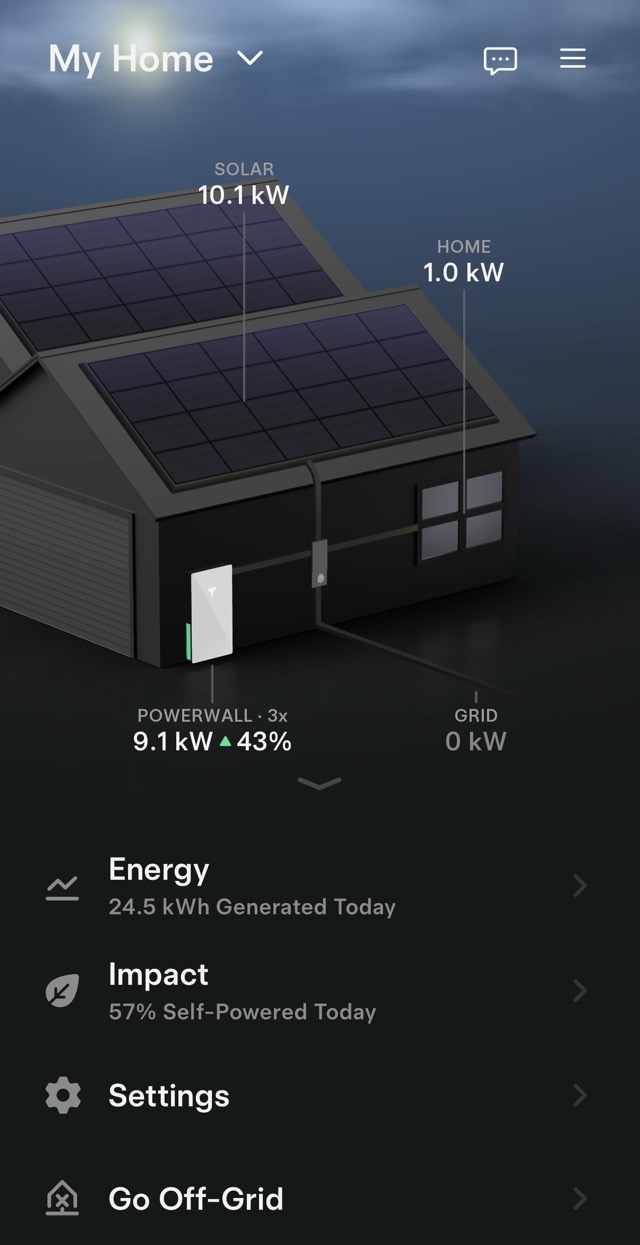
The Energy screen is the heart of the app. It shows a live diagram connecting four things: your Solar, your Powerwall, your Home, and the Grid. Animated lines show which way power is flowing — for example, solar powering your home and charging the Powerwall during the day, or the Powerwall running your home in the evening.
Once you learn to read it at a glance, you can tell exactly what your system is doing at any moment: making more than you’re using, leaning on stored energy, or drawing from the grid.
- Solar → Home: your panels are powering the house right now.
- Solar → Powerwall: extra production is charging your battery.
- Powerwall → Home: you’re running on stored energy (common in the evening).
- Grid → Home: you’re pulling from the utility (at night, or when demand is high).
Setting your backup reserve
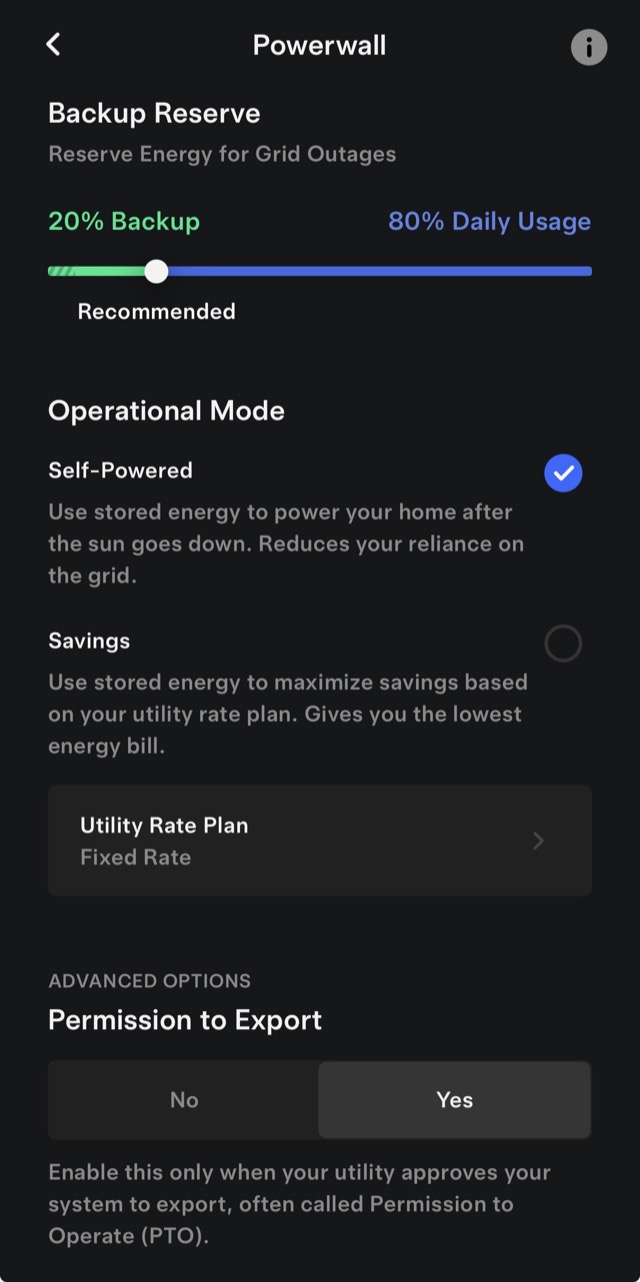
The backup reserve is how much of your Powerwall’s charge you set aside for a grid outage. Set it to 100% and the Powerwall stays full and ready for backup, but you won’t use much stored solar day to day. Set it lower and you use more of your battery for daily savings, keeping less in reserve for outages.
The right setting is a personal trade-off between everyday savings and outage protection. In areas with frequent outages, homeowners often keep a higher reserve; where the grid is stable, a lower reserve captures more daily value.
Choosing how your system operates
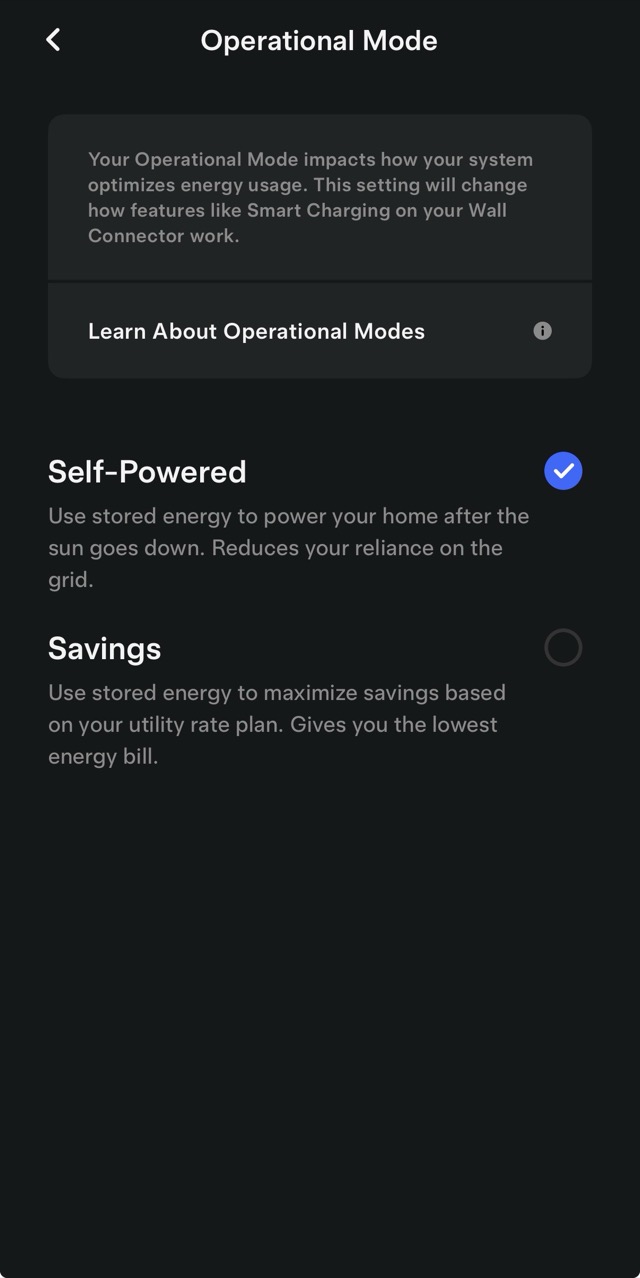
The app lets you pick an operating mode that matches your goal. The two most common are Self-Powered, which prioritizes using your own solar and stored energy to minimize what you buy from the grid, and Time-Based Control, which charges and discharges the Powerwall around your utility’s time-of-use rates to save the most money.
Which one is best depends on your utility’s rate structure. If your rates change by time of day, Time-Based Control can lower your bill; if not, Self-Powered keeps things simple and maximizes self-reliance.
Storm Watch: automatic backup before bad weather
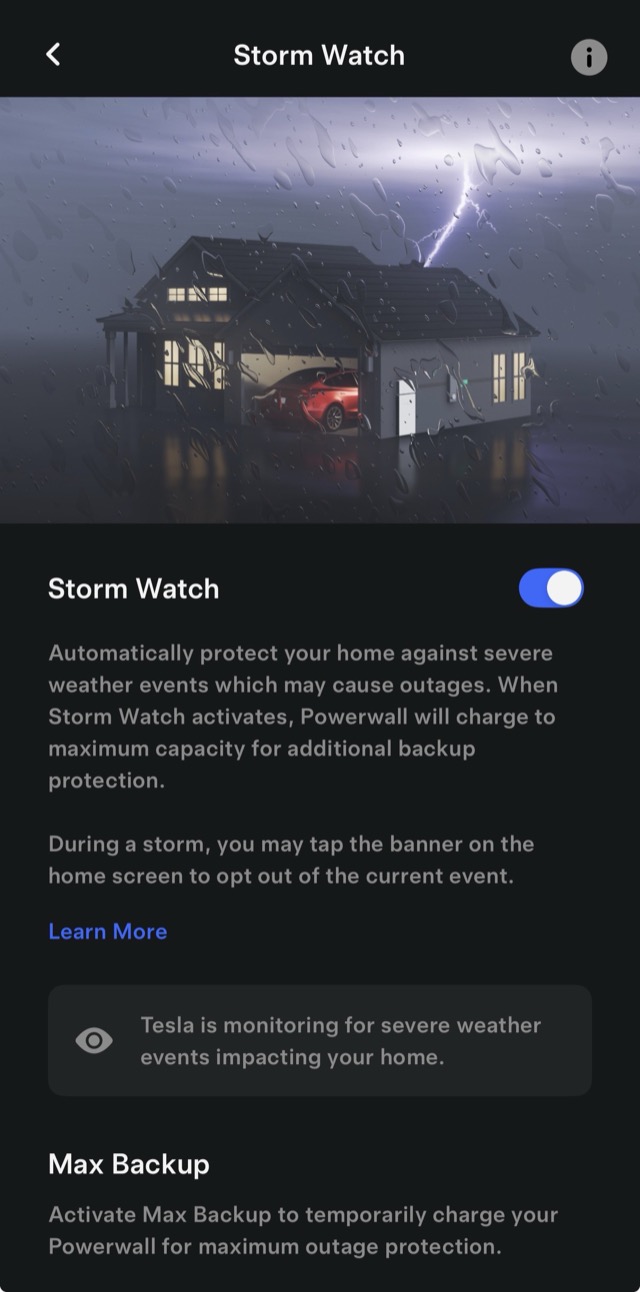
Storm Watch is one of the app’s best features. When severe weather is forecast in your area, your Powerwall automatically charges to full so you have maximum backup ready if the grid goes down — and the app notifies you when it activates. It turns off on its own once the threat passes. You can toggle it on or off in settings; most homeowners leave it on.
Checking history and past outages
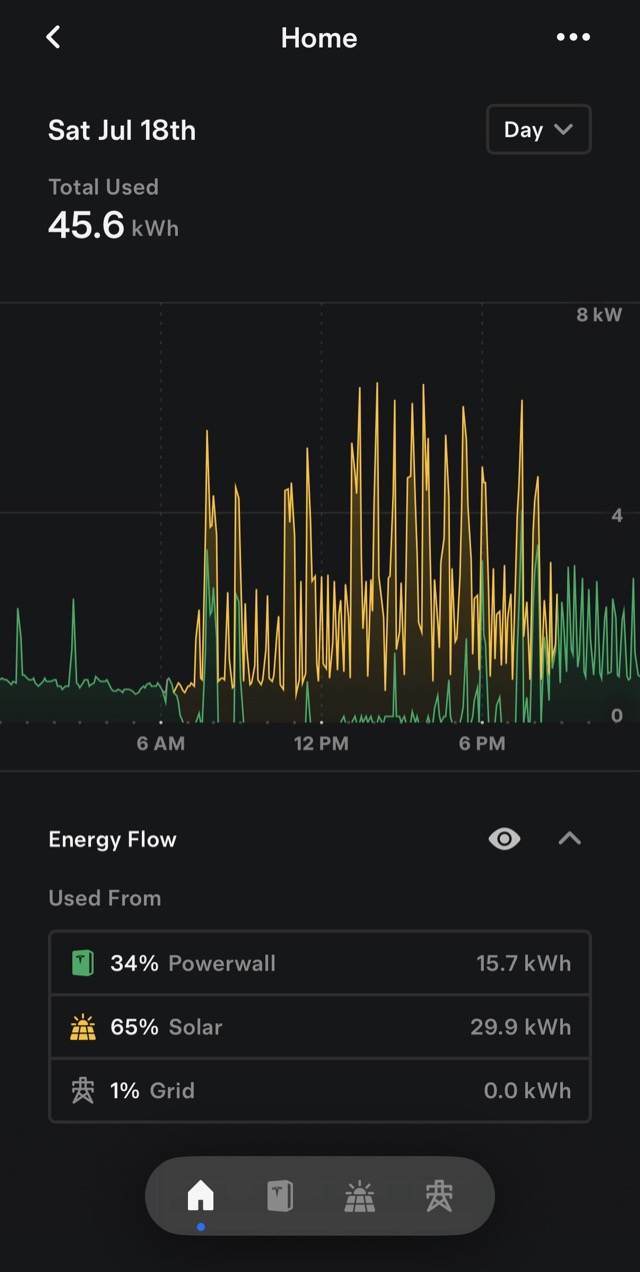
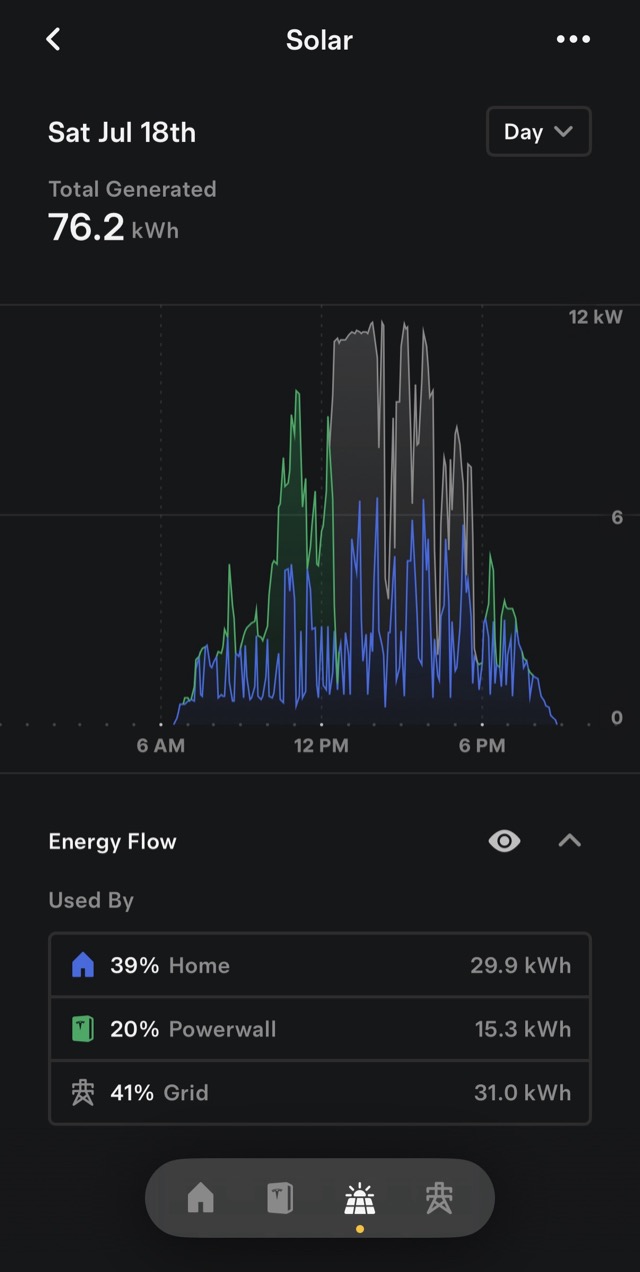
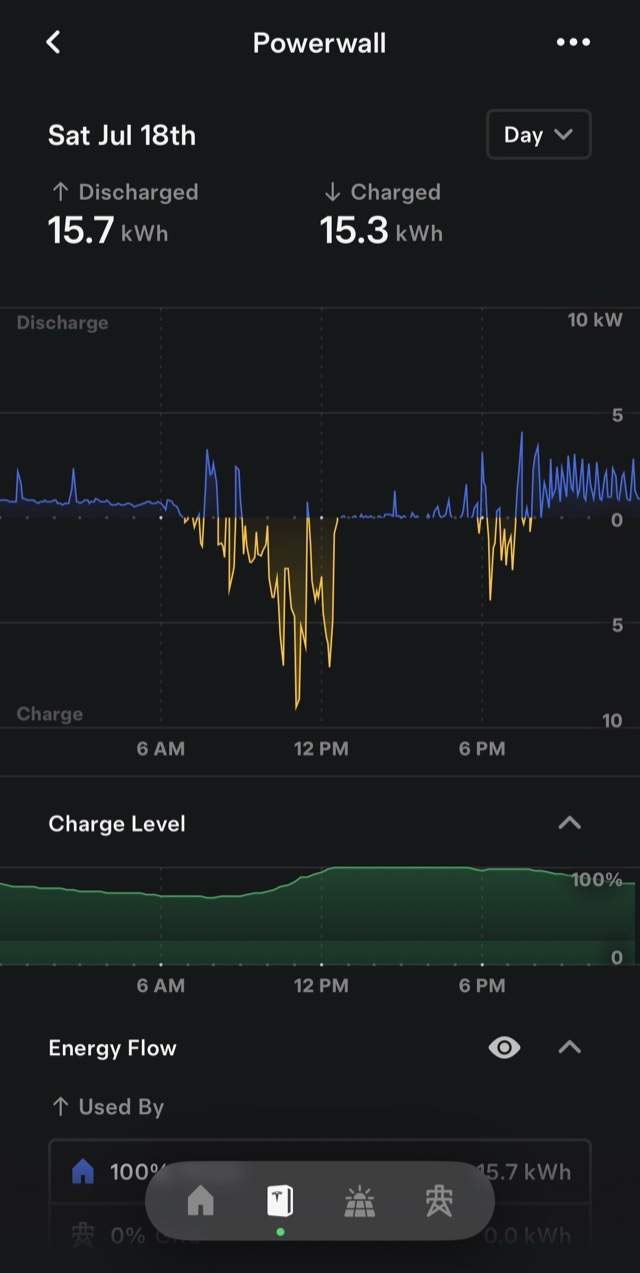
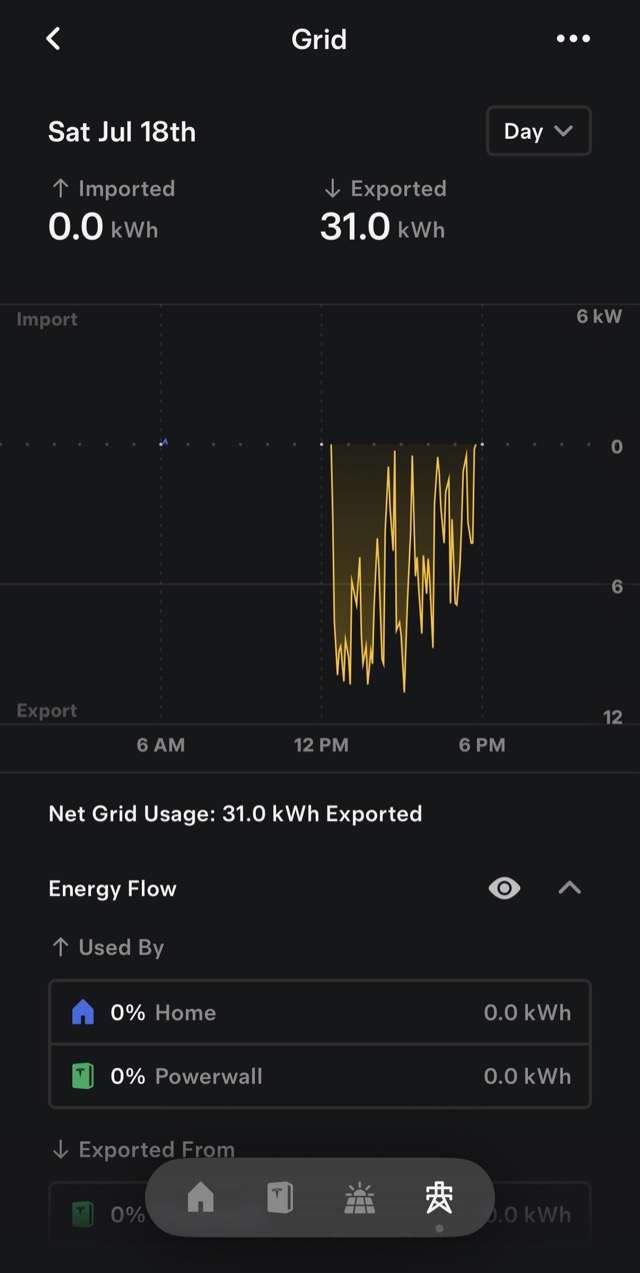
Beyond the live view, the app keeps a history of your energy: daily, monthly, and yearly graphs of how much you produced, used, stored, and exchanged with the grid. It also logs outages — so after a power cut you can see exactly when the grid went down and how your Powerwall carried your home through it.
You can also tap into each source — Home, Solar, Powerwall, and Grid — to see exactly how much each one produced or used, and how your energy split between them across the day.
This history is worth checking now and then. It’s the easiest way to see your solar working over time, and to spot anything unusual worth a call to your installer.
Seeing your solar’s impact
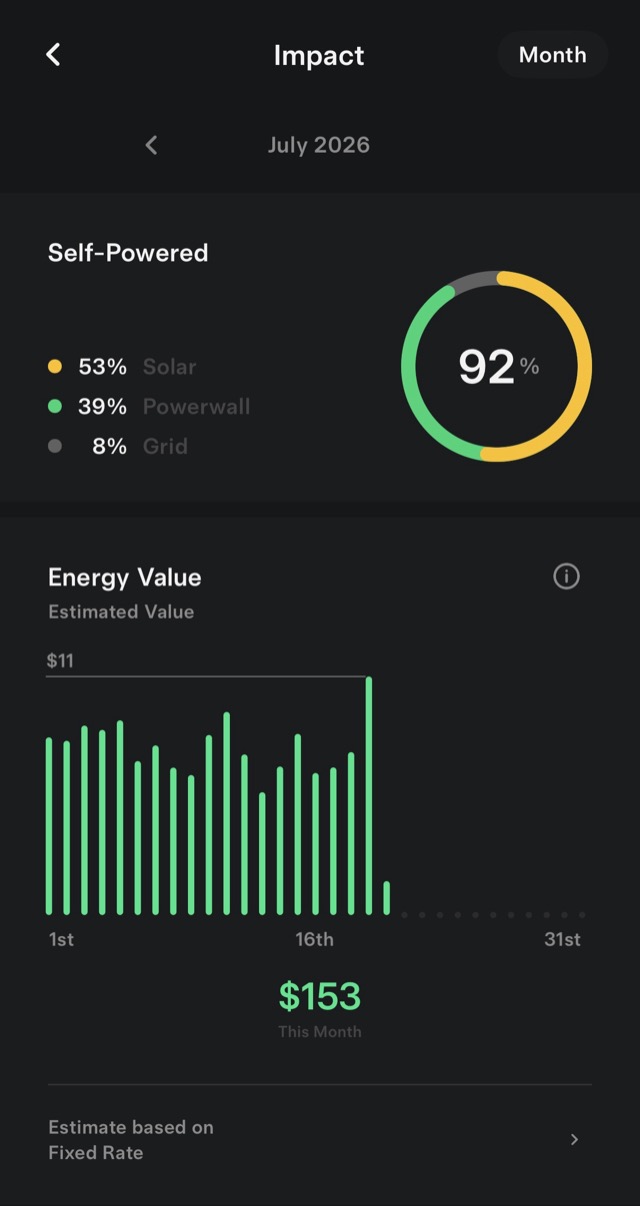
The Impact view sums it all up: how self-powered your home was over a month, how your energy split between solar, Powerwall, and the grid, and an estimate of the energy value your system produced. It’s a satisfying place to check in — and a quick gut-check that your system is performing the way it should.
If something looks off
If the app stops showing data, shows zero solar in good weather, or an outage didn’t behave as expected, note what you see and reach out. ETW Energy services solar and battery systems — including Tesla Powerwall — regardless of who installed them. Having your app open when you call lets us diagnose quickly, often before a visit.
Frequently asked questions
What does the Tesla app do for my solar and Powerwall?
It shows your solar production, Powerwall charge, and live energy flow between solar, battery, home, and grid — and lets you set your backup reserve, choose an operating mode, enable Storm Watch, and review your energy history and past outages.
What should I set my Powerwall backup reserve to?
It’s a trade-off. A higher reserve keeps more battery ready for outages; a lower reserve uses more stored solar for daily savings. In areas with frequent outages, homeowners often keep a higher reserve; where the grid is stable, a lower one captures more everyday value.
What is Tesla Storm Watch?
When severe weather is forecast, Storm Watch automatically charges your Powerwall to full so you have maximum backup ready, and notifies you. It turns off once the threat passes. Most homeowners leave it enabled.
The Tesla app shows no solar production — what should I do?
First check whether it’s a data/connection issue versus a real production problem, and note anything the app shows. If production is genuinely zero in good weather, contact a solar service company — ETW services Tesla Powerwall and solar systems regardless of who installed them.
Need a hand with your system?
Questions about your app, your production, or something that just doesn’t look right — we service systems we didn’t install.
Get service